
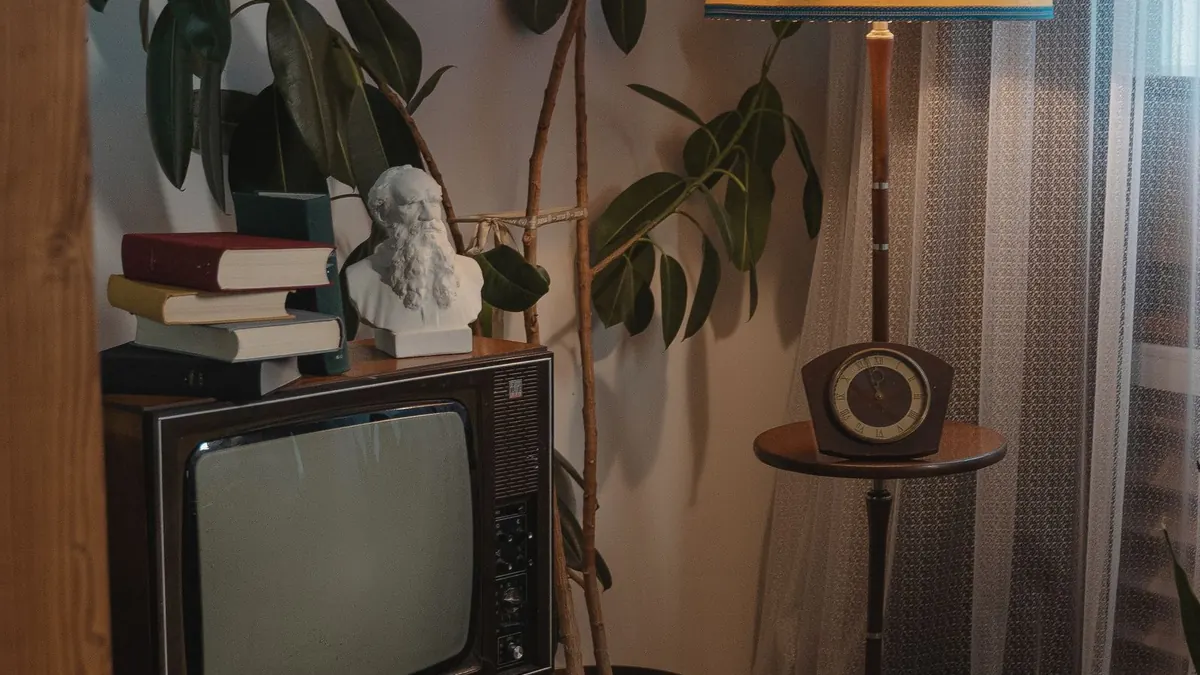
An older television is not the obstacle people assume. In almost every case a device the size of a USB stick turns it into a full streaming set — for less than one month of the subscriptions you are already paying for.
Before buying anything, though, check whether you need to buy at all. A good number of people already own the solution.
First: check what you already have
Streaming apps come built into more devices than most people realise. If any of these are plugged into your television, try them before spending a penny:
- A games console. PlayStation and Xbox consoles carry Netflix, Prime Video, Disney+, iPlayer and most of the rest. Even older models usually have the major apps.
- A Blu-ray player. Many from the last decade or so include streaming apps and simply need connecting to Wi-Fi.
- A set-top box. Sky, Virgin and YouView boxes carry a range of streaming apps.
- A laptop and an HDMI cable. Not elegant, and no remote, but free and it works today.
Most guides skip straight to recommending a purchase. Spend five minutes on the above first.
The decision: what does your TV actually have?
| Your television | What you need |
|---|---|
| Has a spare HDMI port | A streaming stick. Solved completely |
| Has HDMI but all ports are in use | An HDMI switch, or unplug something you rarely use |
| Has no HDMI at all (roughly pre-2005) | Converters exist, but see below |
Nearly everyone falls into the first row. If your set has an HDMI socket, everything below applies and the fix is straightforward.
How a streaming stick works
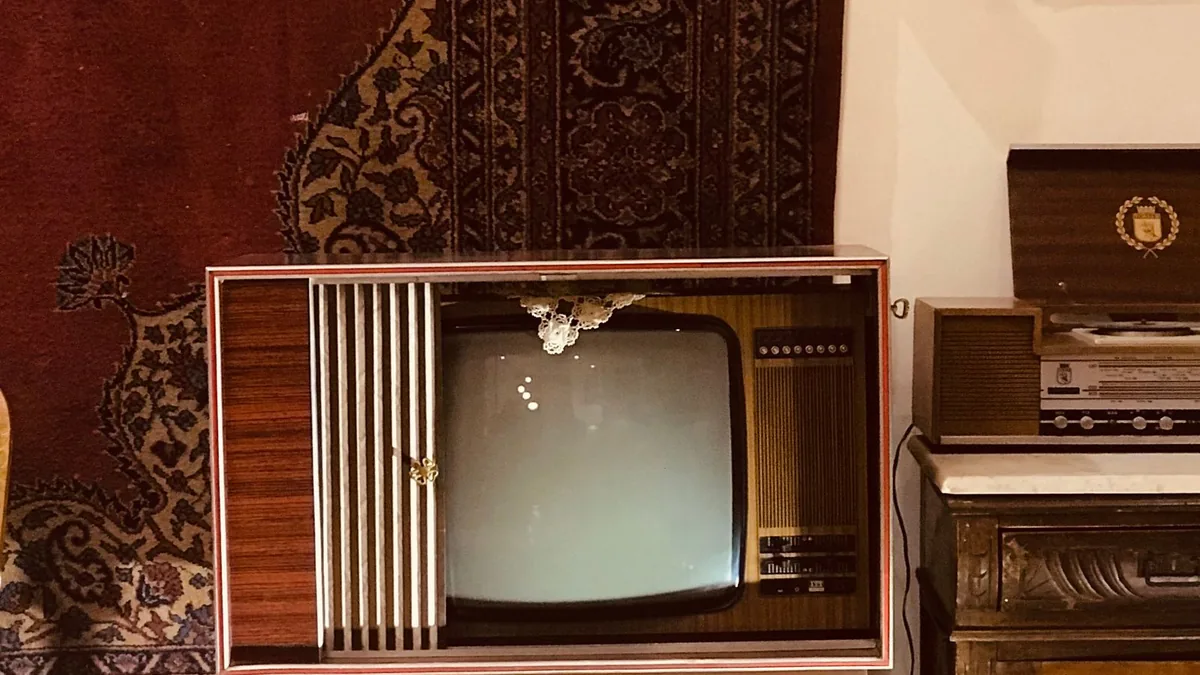
It plugs into a spare HDMI port, draws power from a USB socket or the mains, and connects to your Wi-Fi. You then switch the television to that HDMI input and use the stick’s own remote. The television itself does nothing except display the picture — which is why its age barely matters.
Most sticks ship with a short HDMI extender for sets where the port is awkwardly placed against a wall.
Which one to buy
Three families dominate in Britain, and the honest answer is that for an older television the differences are small.
- Amazon Fire TV Stick — solid HD streaming, Dolby Atmos audio, and can control the television’s power and volume. The interface pushes Amazon’s own content prominently, which some people dislike.
- Roku Streaming Stick — the entry-level HD model is the cheapest sensible route to smart features, and the 4K version is widely rated the best all-round balance of price, simplicity and performance. The interface is neutral, treating every service equally.
- Google TV Streamer — a box rather than a stick, with a fuller interface, voice remote and built-in casting. It sits at the premium end, and its most recent version rose substantially in price.
We are not quoting prices here because they change constantly and vary by retailer — check current pricing before buying, and note that these devices are discounted heavily and often.
The mistake to avoid
Do not buy a 4K stick for a 1080p television.
An older set is almost certainly HD rather than 4K, and a 4K device delivers no visible benefit on a screen that cannot display 4K. The cheaper HD model is the correct purchase.
This matters because most “best streaming stick” recommendations assume a modern 4K television. If you are reading a guide like this, you probably do not have one — buy accordingly and keep the difference.
If your television has no HDMI
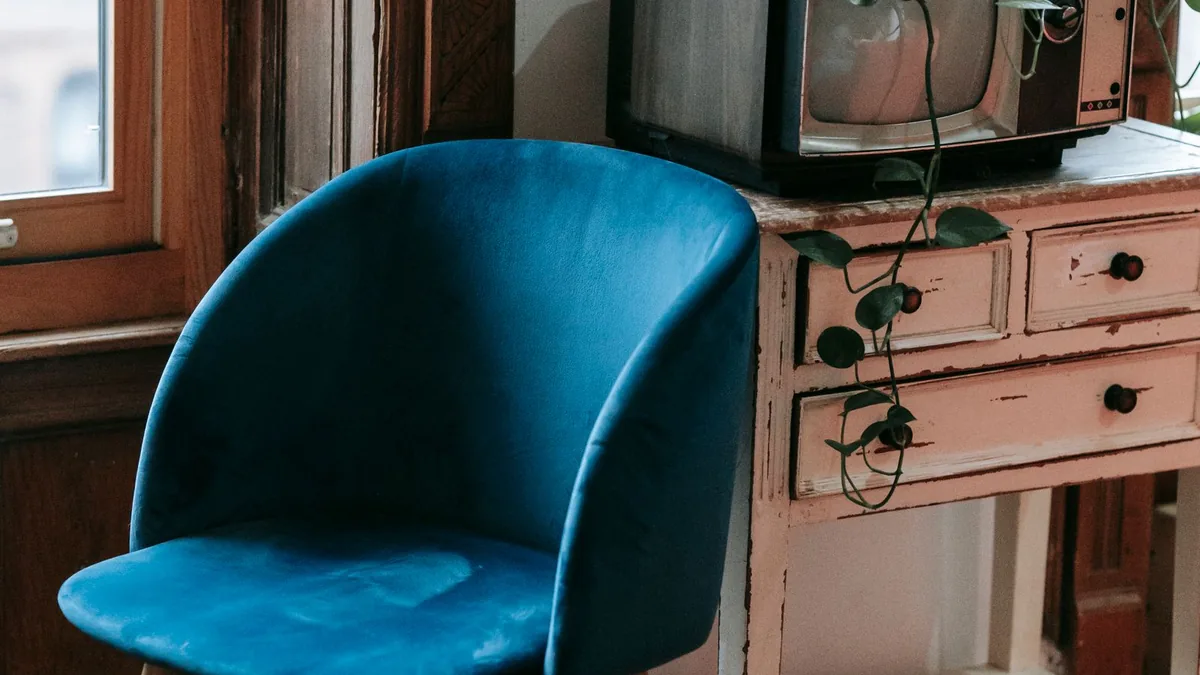
For sets old enough to have only composite connections — the red, white and yellow sockets — adaptors do exist that convert an HDMI signal down to composite.
They work, but the picture quality is genuinely poor, because you are compressing a modern digital stream into a connection designed decades ago. For a television that old, the money is usually better spent replacing the set, particularly given how cheap basic modern televisions have become.
Once it’s set up
- Use the stick’s remote, not the television’s. Some sticks can control volume and power, which means one remote for everything.
- Wire it if you can. Some models accept an ethernet adaptor. If the television is near the router, this removes the most common cause of buffering — see our guide to fixing Netflix buffering.
- Expect the app selection to be complete. All the major services run on all three families of device, so you are not choosing between platforms based on what you watch.
- Older sets may show a black border or overscan. Usually fixable in the television’s picture settings rather than the stick’s.
Frequently asked questions
Can I get Netflix on an old TV?
Yes, with any streaming stick plugged into a spare HDMI port. The television only displays the picture — its age makes no practical difference.
Do I need a smart TV to stream?
No. A streaming stick provides everything a smart television does, and is generally faster and better supported than the software built into older sets.
Which streaming stick is best for an older TV?
An entry-level HD model. Since an older television will not display 4K, paying for a 4K device gains you nothing.
Can I stream without any extra device?
Possibly. Games consoles, many Blu-ray players and most set-top boxes already include the major streaming apps.
What if there’s no HDMI port?
Composite converters exist but the picture is poor. For a set that old, replacing it is usually the better value.
In short
Check what you already own, then buy the cheapest HD stick if you need one. An older television with an HDMI port is a solved problem — and the fix costs less than a single month of the services you will watch on it.
For other UK streaming problems, see our UK streaming help guide.